Video mattingv4.0.523
Remotion has native support for separating a video into foreground and background.
It is achieved using Transformers.js, WebGPU and open-source models.
In Remotion Studio
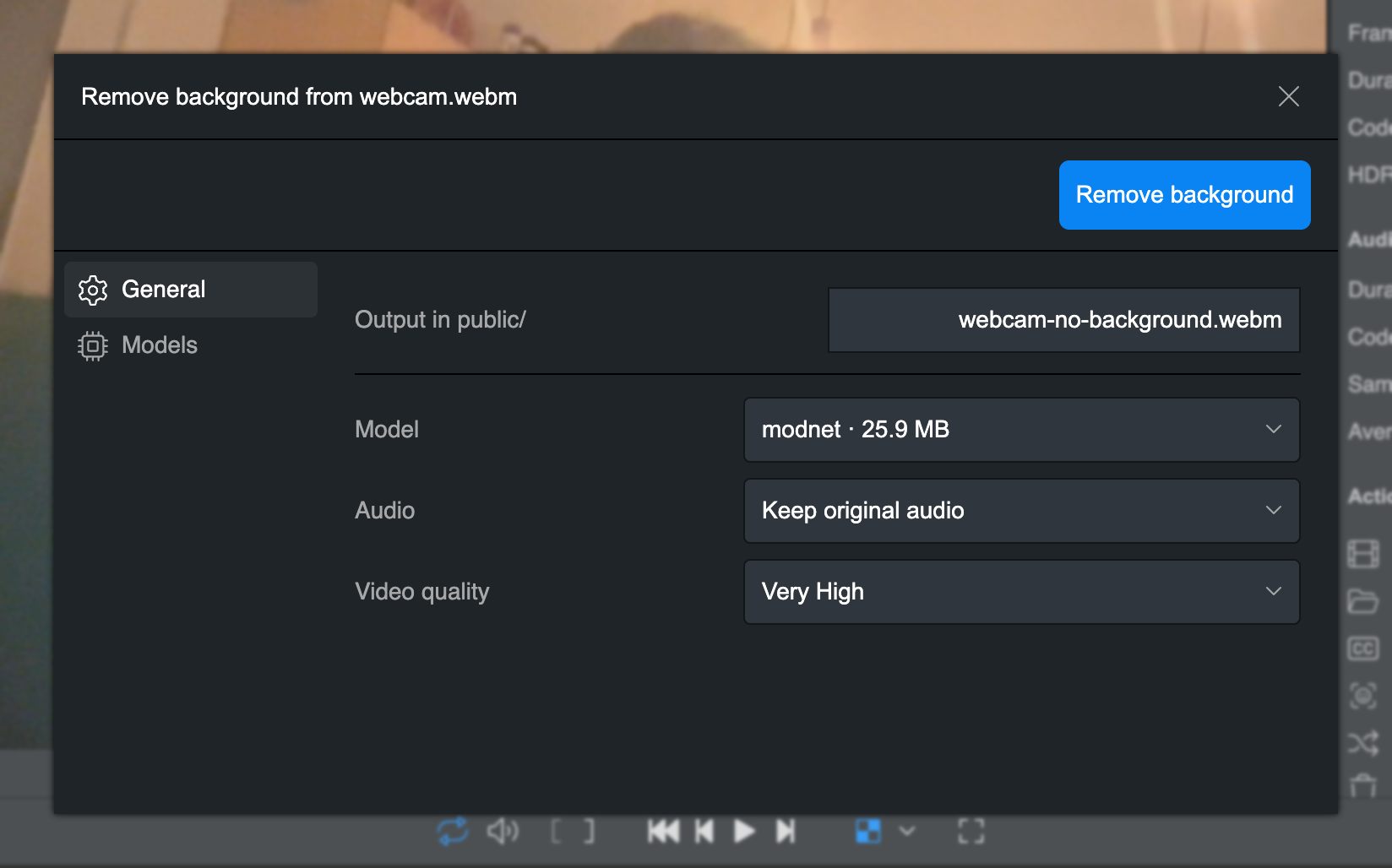
Select a video and choose Remove background.
A modal will open which will allow you to configure how you want your layers to be set up and will apply the markup change right away.
This functionality is also exposed in WebMCP, making it available to agents.
Programmatically
Use @remotion/video-matting to separate layers programmatically.
Using agents
Use the /remotion-markup skill when wanting to do a video matting task.
Use Cases
Text behind a subject
Use 3 layers with background, text and foreground.
/remotion-markup Put animated text reading 'BEHIND THE SCENES' behind the subject in public/original.mp4 using video matting.
Keep the original background and audio, and make the text editable in Studio.TextBehindVideo.tsximport {Video } from '@remotion/media'; import {Interactive ,staticFile } from 'remotion'; export constTextBehindVideo = () => { return ( <> <Video src ={staticFile ('original.mp4')}style ={{position : 'absolute',inset : 0,width : '100%',height : '100%',objectFit : 'cover'}} /> <Interactive .Div name ="Text behind subject"style ={{position : 'absolute',inset : 0,display : 'flex',flexDirection : 'column',justifyContent : 'center',alignItems : 'center',color : 'white',fontSize : 120,fontWeight : 800, }} > BEHIND THE SCENES </Interactive .Div > <Video src ={staticFile ('foreground.webm')}muted style ={{position : 'absolute',inset : 0,width : '100%',height : '100%',objectFit : 'cover', }} /> </> ); };
Background blur
Apply a blur() effect to the original video, then place the sharp foreground on top.
This keeps the subject in focus while softening the surrounding scene.
/remotion-markup Blur the background of public/original.mp4 using video matting, while keeping the subject sharp and the original audio.BackgroundBlur.tsximport {blur } from '@remotion/effects/blur'; import {Video } from '@remotion/media'; import {staticFile } from 'remotion'; export constBackgroundBlur = () => { return ( <> <Video src ={staticFile ('original.mp4')}effects ={[blur ({radius : 16})]}style ={{position : 'absolute',inset : 0,width : '100%',height : '100%',objectFit : 'cover'}} /> <Video src ={staticFile ('foreground.webm')}muted style ={{position : 'absolute',inset : 0,width : '100%',height : '100%',objectFit : 'cover', }} /> </> ); };
Because the blurred original still contains the subject, a strong blur can produce a halo around its edges. Reduce the blur radius if this becomes distracting.
You can also color-correct or darken the base while leaving the foreground unchanged.
Background replacement
Omit the original video and place the foreground over a new background.
Use an <CanvasImage>, another <Video>, or HTML elements to create the replacement.
/remotion-markup Remove the background from public/original.mp4 using video matting and place the subject over a dark blue background. Keep the original audio.BackgroundReplacement.tsximport {Video } from '@remotion/media'; import {staticFile ,Interactive } from 'remotion'; export constBackgroundReplacement = () => { return ( <> <Interactive .Div name ="Background"style ={{position : 'absolute',inset : 0,backgroundColor : '#0b1533', }} /> <Video src ={staticFile ('foreground.webm')}muted style ={{position : 'absolute',inset : 0,width : '100%',height : '100%',objectFit : 'contain'}} /> </> ); };
This example is silent. Keep audio in the foreground when generating it, or add an <Audio> layer for the original speech or a soundtrack.
Foreground effects
Apply effects to the foreground video to change only the subject.
For example:
- Use a
glow()effect to highlight a person or product, - a
dropShadow()effect to separate a cutout from a replacement background - use color correction to match the subject to a new scene.
/remotion-markup Add a soft glow to only the subject in public/original.mp4 using video matting. Keep the original background and audio./remotion-markup Use video matting to cut out the subject in public/original.mp4, place it over a light gray background, and add a subtle drop shadow. Keep the original audio./remotion-markup Use video matting to warm up the colors of only the subject in public/original.mp4. Leave the original background and audio unchanged.