Effectsv4.0.464
Apply effects doing pixel manipulation onto any element.
You can use one of Remotions built-in effects or create your own.
Available effects
Browse the Effects library for previews, examples, and options for each effect.
Table of contents
Supported components
The following components support effects:
<Solid><Video><Img><CanvasImage><AnimatedImage><Gif><RemotionRiveCanvas>@remotion/shapescomponents
All other elements, and any HTML component can be wrapped in <HtmlInCanvas>, which can then accept effects.
Usage
Effects can be added programmatically, interactively or agentically.
Programmatically
Pass effects through the effects prop as an array of effect functions:
MyComp.tsximport {Video } from '@remotion/media'; import {blur } from '@remotion/effects/blur'; export constMyComp :React .FC = () => { return ( <Video src ="https://remotion.media/video.mp4"effects ={[blur ({radius : 40})]} /> ); };
Interactively
In Remotion Studio, select any element.
You then have multiple ways of adding an effect:
- Click the
+icon in the Inspector next toEffects. - Press E
- Right-click and select
Add Effect - Drag an effect from the Effects library onto the element.
Agentically
Ask an agent with Remotion Skills installed to add an effect while following Remotion conventions:
/remotion-markup Add a blur effect to the video.Multipass
Multiple effects can be combined. They apply in the order they are specified.
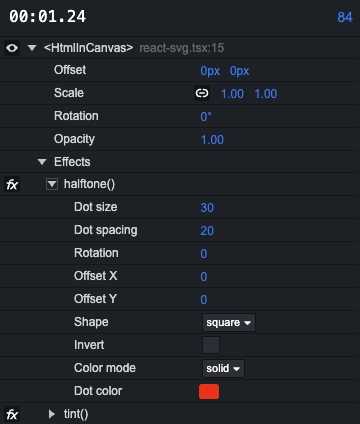
Visual editing in Studio
When you select a component with effects in Remotion Studio, you can edit effect parameters in the timeline and toggle effects.
Custom effects
Follow Make your own effect for a short example, or see createEffect() for the full API.