Browse Elements in Studio
Browse and install Elements from Element Libraries directly inside Remotion Studio.
Open Browse Elements
Select Browse Elements in the Actions section of the right inspector. Studio opens the first library of your project. If no library is added yet, Studio opens Explore, where you can discover libraries.
Add a library
1 Select Browse Elements in the Actions section of the right inspector.
2 Select Explore at the top of the sidebar to see the libraries that we feature.
3 Select Add to Studio on a library. It appears in the sidebar below Explore.
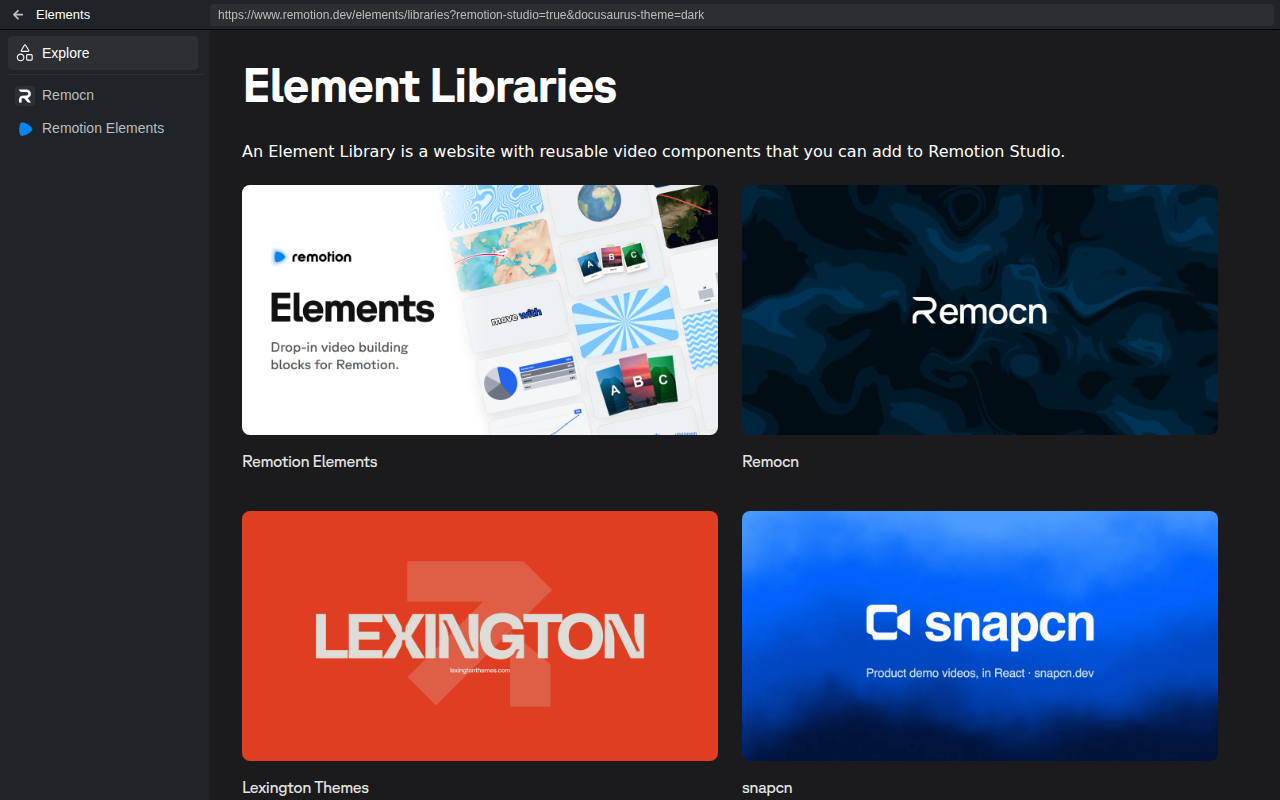
To add a library that is not listed, right-click empty space in the sidebar, choose Add library… and enter its URL.
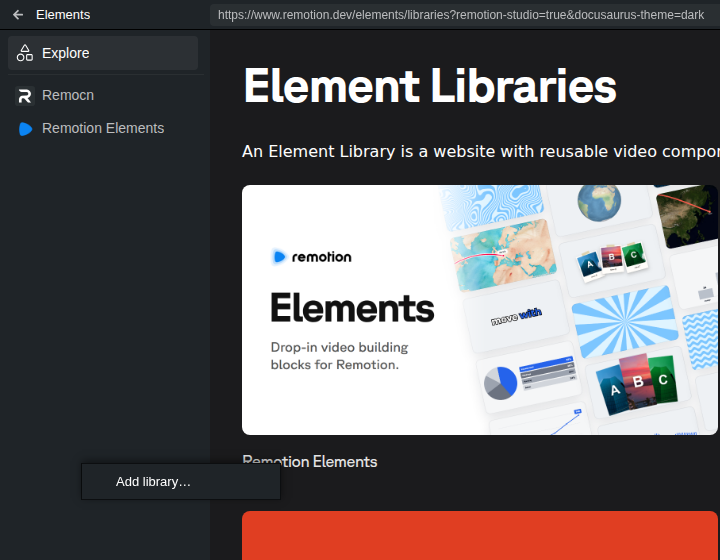
Studio saves the library to remotion.config.ts. See Managing Element Libraries for adding libraries from the command line or in the config file.
Edit or remove a library
Right-click a library and choose Edit… to change its name and URL, or Remove to remove it.
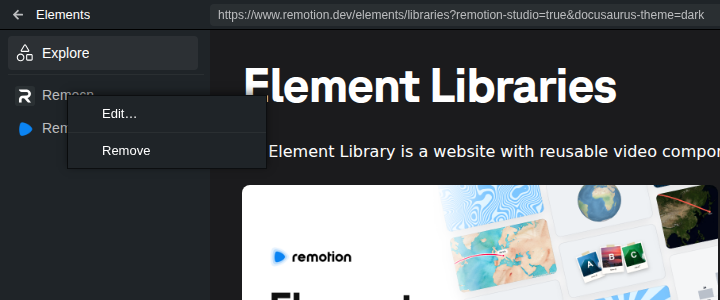
Removing a library does not remove Elements that were already added to the project.
Reorder libraries
Drag libraries in the sidebar, or focus a library and press Alt+↑/↓.