Premountingv4.0.140
Premounting mounts a component before it appears, giving images, videos, and animations time to load and initialize. It applies in the Player and Studio, and has no effect during rendering.
What is premounting?
Without premounting, a component mounts when its time range begins. Its assets may still be loading when they should become visible:
With premounting, the component mounts earlier, stays hidden, and waits at its first frame until its time range begins:
Default premounting in Studiov4.0.535
The Remotion Studio premounts components automatically from v4.0.535 for 2 seconds.
Configure this with Config.setDefaultPremountInSeconds() or the Studio settings.
Open Settings in the top-right corner of Studio. Under Playback, change "Default premount in seconds". Premounting indicators are hidden by default.
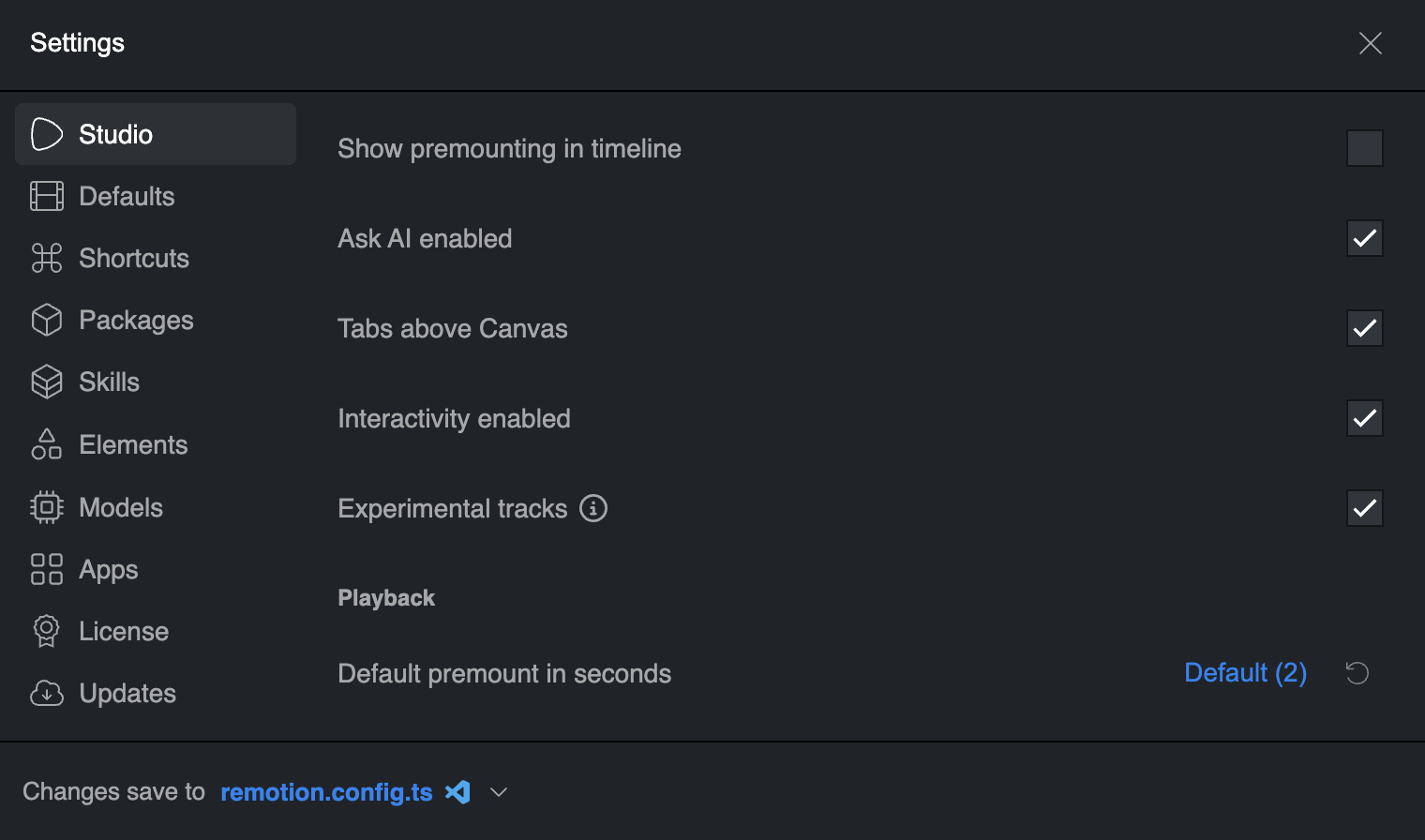
Default premounting in the Player
The Player does not premount by default.
In Remotion 5.0, it will premount for 2 seconds by default.
Pass the defaultPremountInSeconds prop to override this default:
MyPlayer.tsxexport constMyPlayer :React .FC = () => { return ( <Player component ={MyComposition }durationInFrames ={150}fps ={30}compositionWidth ={1920}compositionHeight ={1080}defaultPremountInSeconds ={2} /> ); };
An explicit premountFor overrides the default. Pass premountFor={0} to disable premounting for a component.
Components which support premounting
The following components support premounting:
<Video>and<Audio>from@remotion/media<Img>,<AnimatedImage>,<Gif><Lottie>,<RemotionRiveCanvas><AbsoluteFill>,InteractiveHTML and SVG components,<HtmlInCanvas>,<Solid><Series>,<Series.Sequence>,<TransitionSeries>,<TransitionSeries.Sequence>- Shape components,
<MacOSCursor>, rough-notation components <ThreeCanvas>,<ThreeWebGPUCanvas><Sequence>
Individually premount items
Use premountFor to individually control the premounting duration in frames for each component.
Containers with a layout prop must use layout="absolute-fill" for premounting to work.
Example: Image mounts at frame 30 and becomes visible at frame 60:
PremountedImage.tsximport {Img ,staticFile } from 'remotion'; export constPremountedImage :React .FC = () => { return ( <Img from ={60}premountFor ={30}src ={staticFile ('logo.png')}width ={200} /> ); };
Seeing if a component is premounted
Enable premounting indicators with Config.setShowPremounting(true) or check "Show premounting in timeline" under Settings → Studio → Interface.
Diagonal stripes indicate the premounted range:

To inspect one component while indicators are disabled, select it in the timeline and click "Premount For" under Layout in the Inspector. Its premounted range stays visible while the property is selected.

Premounting is not shown for items that share a timeline track with other items.
If you are outside the Studio, there is no indication.
Use the developer tools in the browser to see if an item is mounted to the DOM.
Premounting a whole scene
Create a scene with Interactive.withSchema() and layout: 'absolute-fill', then set premountFor to prepare its children together:
PremountedScene.tsximport {Img ,Interactive ,staticFile } from 'remotion'; constScene =Interactive .withSchema ({Component : () => ( <> <Img src ={staticFile ('logo.png')}width ={200} /> <h1 >Welcome</h1 > </> ),componentName : 'Scene',schema : {},wrapInSequence : true,layout : 'absolute-fill', }); export constPremountedScene :React .FC = () => { return ( <Scene from ={60}durationInFrames ={90}premountFor ={30} /> ); };
The image and heading mount at frame 30, become visible at frame 60, and unmount at frame 150.
A child can only premount while its parent is mounted. Premount the outer container when its children need to load before the scene starts.
For custom components, see Make a component interactive.
Usage together with the buffer state
Loading an invisible component should not pause playback. Components that support the buffer state, such as <Video>, <Audio>, and <Img>, do not trigger it while premounted. This also applies to <Html5Audio>, <Html5Video>, and <OffthreadVideo> inside a premounted scene.
If an asset is still loading when it becomes visible, it can trigger the buffer state according to its buffering settings.
Postmounting
In addition to premountFor, there is also postmountFor, which keeps the component mounted after it has ended.
The use case for this is if you want to optimize reverse seeking or playback.